Assignment M0d
Set up your computer
Enable showing file extensions.
- Windows Instructions:
- Open File Explorer (Shortcut: WIN + E)
- Click View
- Hover over Show
- Click File name Extensions
- macOS Instructions:
- Open Finder
- Click Finder on the menu bar (top left)
- Click Settings (Shortcut: CMD + ,)
- Navigate to Advanced
- Enable Show all filename extensions
Install a Code Editor
We recommend using Visual Studio Code (VS Code) which can be downloaded here . If you install Visual Studio Code, please download the Live Server Extension from the Extensions Marketplace.
Install an FTP Client
We recommend using FileZilla which is free and works on Windows, macOS, and Linux.
Install the University’s VPN Client
You can download the VPN from here
Username:
Niner_Net_username@charlotte.edu
Password:Niner_Net_password
Note: Replace the bolded parts with your university provided login
Install GitHub Desktop
You can download GitHub Desktop from here .\
You do not need to use GitHub Desktop and may use another Git Client or use the Git CLI. We recommend it as not everyone is familiar with git and CLI tools. But instructions will assume that you installed it.
Set up GitHub
Create GitHub profile
Go to GitHub.com and sign in or sign up for an account.
If you already have an account you may use that as well.
Create a repository
Navigate to the create repository button and create a repository, then name the repository as follows: YOUR_GITHUB_USERNAME.github.io
My GitHub username is alexandernc0043 so my repository should be named alexandernc0043.github.io
If you do not name your repository exactly like that your webpage will not work.
Clone your repository
Open GitHub desktop and sign in with your GitHub account details and clone the repository to your machine.
Open your project
Open your cloned repository in Visual Studio Code by clicking the button inside GitHub Desktop.
Note: you may need to change the default code editor which can be done by clicking settings next to the open button.
Creating your first webpage.
Create index.html
Inside your folder create a file named index.html
Make sure not to name it something like index.html.txt, Index.html, or INDEX.HTML. it must be index.html all lowercase.
Generate the boilerplate code
Using Visual Studio Code’s Emmett tool type an ! and hit Tab or Enter on your keyboard.
Your file should look like this now:
<!DOCTYPE html>
<html lang="en">
<head>
    <meta charset="UTF-8"/>
    <meta name="viewport" content="width=device-width, initial-scale=1.0"/>
    <title>Document</title>
</head>
<body></body>
</html>
Edit your title
You can edit the title by editing the word Document inside this element <title>Document</title> with [YOUR_NAME] [Divider] Homepage
Example(s):
<title>Alexander Prechtel | Homepage</title>
<title>Alexander Prechtel ~ Homepage</title>
<title>Alexander Prechtel - Homepage</title>
Add a heading
Inside your body element add a Heading 1 element <h1> and put the following:
<h1>Welcome to my homepage!</h1>Add a link to your course page
Add an anchor element <a> after your heading 1 element that will take you to your course page.
<a href="itis3135">Click here to go to my ITIS-3135 course page!</a>The href attribute stands for hypertext reference and the value of it is where your link will go.
Your body should now look like this:
<body>
<h1>Welcome to my homepage!</h1>
<a href="itis3135">Click here to go to my ITIS-3135 course page!</a>
</body>
Creating your course page
Create your course folder
Inside your YOUR_GITHUB_USERNAME.github.io folder create a folder named itis3135
In the future your YOUR_GITHUB_USERNAME.github.io folder will be referred to as the “root” of your website
Create your second index.html file
Inside your itis3135 folder create a new file called index.html
Open your new index.html
Inside your new index.html file copy the contents from your previous index.html file.
Remove the link (<a>...</a>)
Since you are already on your course page you don’t need a link to your course page.
Replace homepage
Everywhere you see homepage you should replace with ITIS-3135 course page
Your new index.html file should look like this now:
<!DOCTYPE html>
<html lang="en">
<head>
    <meta charset="UTF-8"/>
    <meta name="viewport" content="width=device-width, initial-scale=1.0"/>
    <title>Alexander Prechtel | ITIS-3135 Course page</title>
</head>
<body>
<h1>Welcome to my ITIS-3135 course page!</h1>
<!-- If your link is still here remove it.--->
</body>
</html>
Create more folders
Inside your itis3135 folder create 6 new folders with the names:
- images
- components
- scripts
- styles
- projects
- archives
GitHub won’t track folders with no files inside. You can add a README.md file if you want to have it be tracked but that’s not required.
Creating your UNCC webspace
Request your UNCC webpage
Request your UNCC Webspace by visiting webpages.charlotte.edu and signing in with your NinerNet account and clicking request account.
This can take up to 10 minutes to provision.
Once your webpage is created you can visit webpages.charlotte.edu/YOUR_NINER_NET_USERNAME/ and you should see a template website saying it’s been created.
Use FileZilla to transfer your files to your university webspace.
If you are off campus you will need to use the Cisco Secure VPN you installed in previous steps. Inside the box when opening Cisco Secure Client you will type vpn.charlotte.edu then Login with your NinerNet account details.
Connecting to the university’s FTP server.
Details for connecting to the FTP Server
Host: webpages.charlotte.edu
Username: YOUR_NINER_NET_USERNAME Password: YOUR_NINER_NET_PASSWORD
Port: 22
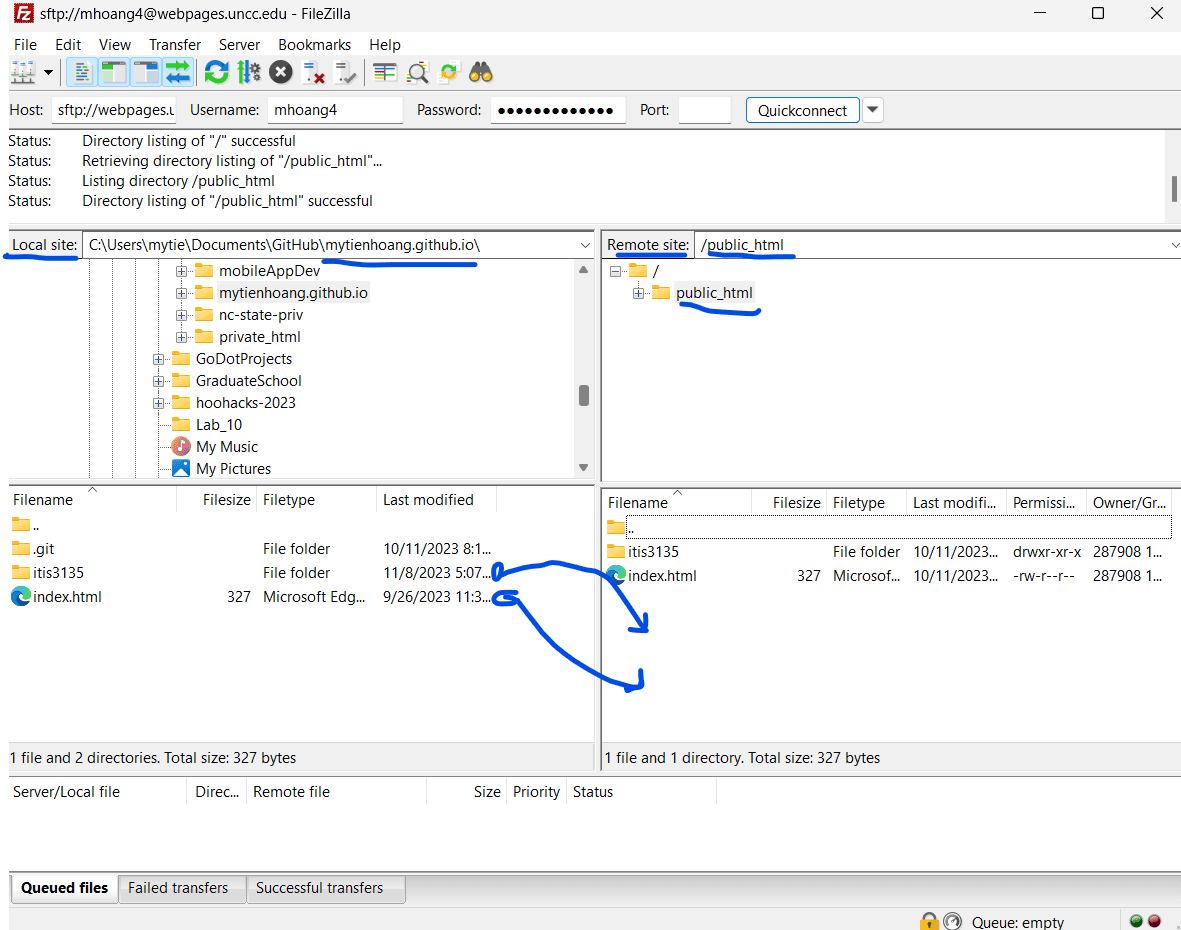
Once you are connected you should see your computer’s files on the left and the server’s on the right
If you include @charlotte.edu in your username the connection will not work.
On the server side open the public_html folder.
The public_html folder is where you should be placing all work on the FTP server.
Find your YOUR_GITHUB_USERNAME.github.io folder on your computer.
Your computer’s files are the ones on the left side. Also the default location for GitHub repositories is Documents/GitHub.
Archive your default index.html
Once you have located your folder drag the public_html/index.html file on the server side inside your YOUR_GITHUB_USERNAME.github.io/itis3135/archives folder
Now move your project files
After you have archived the default index.html file, move your root index.html and the itis3135 folder into the public_html folder on the server side.
Your file tree should look like this now:
- index.html
- index.html
- index.html
This file tree is interactive :)
Commit your Changes
After you have successfully set up your university webspace go to GitHub Desktop and commit your changes
Submission
Please submit the following
Note: your university webpage and GitHub webpage should/need to be identical.
- A screenshot of the entire FileZilla application showing your computer’s files and server’s files.
Example:
- The URL for your UNCC webpage’s itis3135 page.
- The URL for your GitHub repository.
Example: https://github.com/alexandernc0043/alexandernc0043.github.io